Contents
1. Log in to the Hotcoin App
2. Go to the Spot Trading Section
3. Understand the Trading Interface
4. Place Your Order
5. Select Order Type
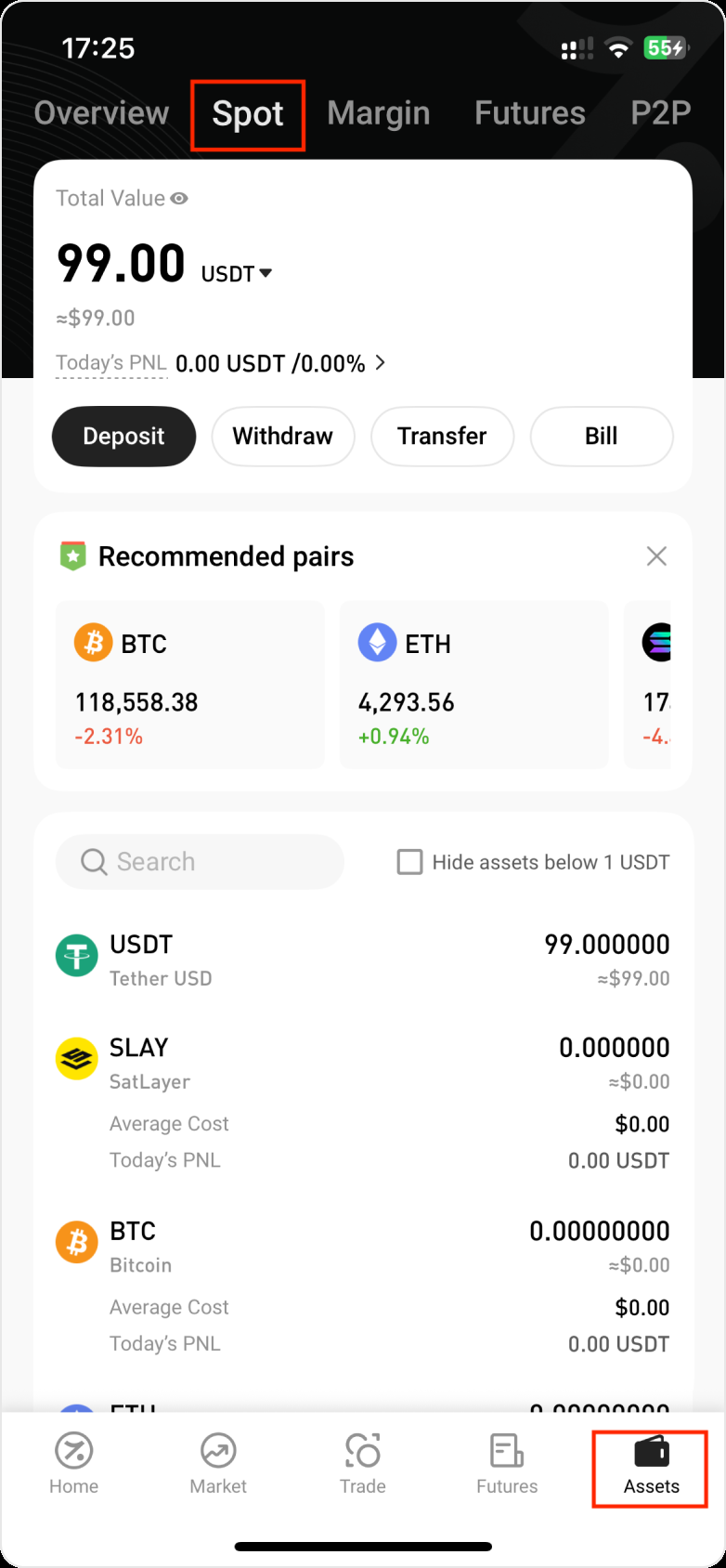
6. Check Your Spot Assets
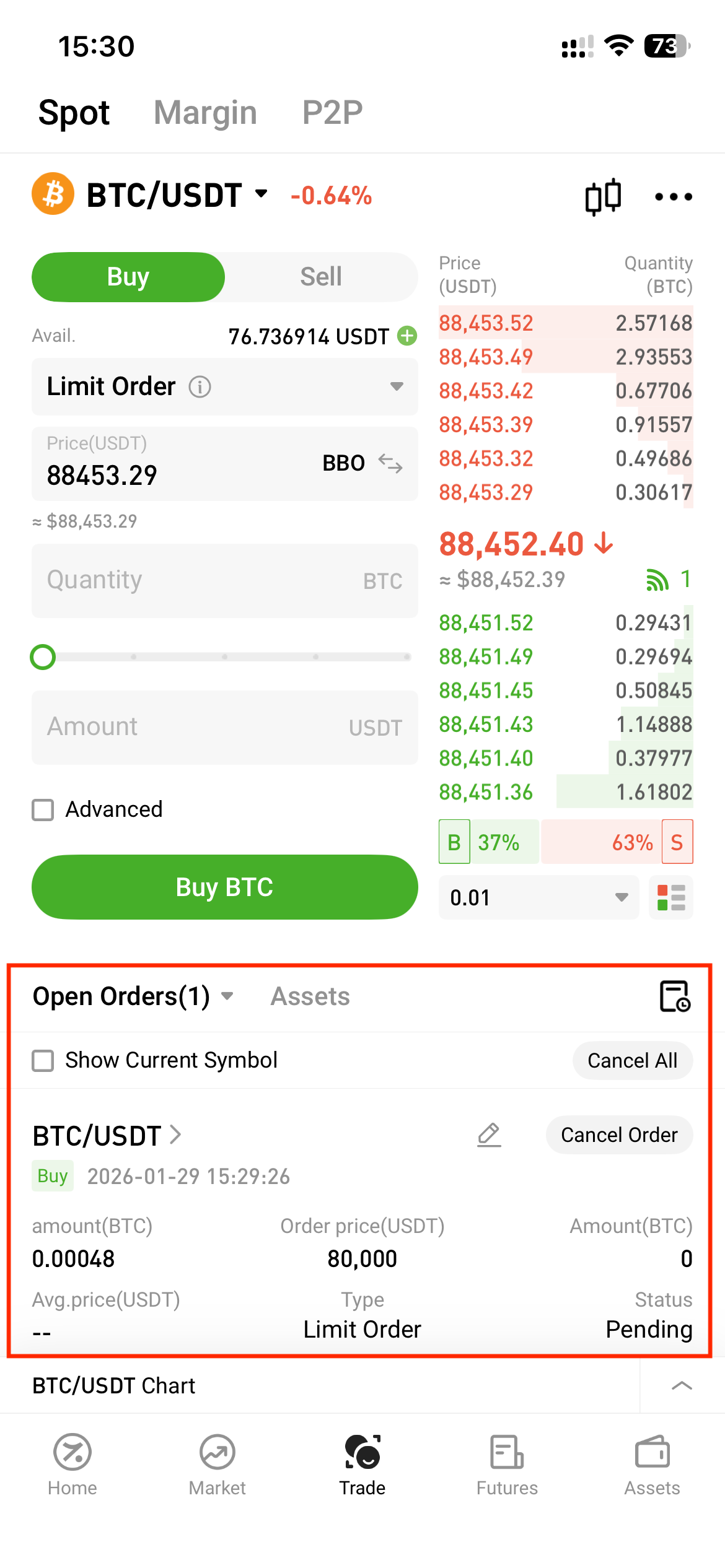
7. Cancel or Manage Orders
This guide walks you through the basic steps to start trading cryptocurrencies on the Hotcoin app using the Spot trading feature.
1. Log in to the Hotcoin App
Please follow the instructions below to download and install the Hotcoin App:
💡 We recommend completing identity verification (KYC) after logging in to better protect your account, funds, and trading security.
2. Go to the Spot Trading Section
- From the homepage, tap the Trade tab at the bottom
- Once you open the trading page, you’ll land on the Spot trading section by default.
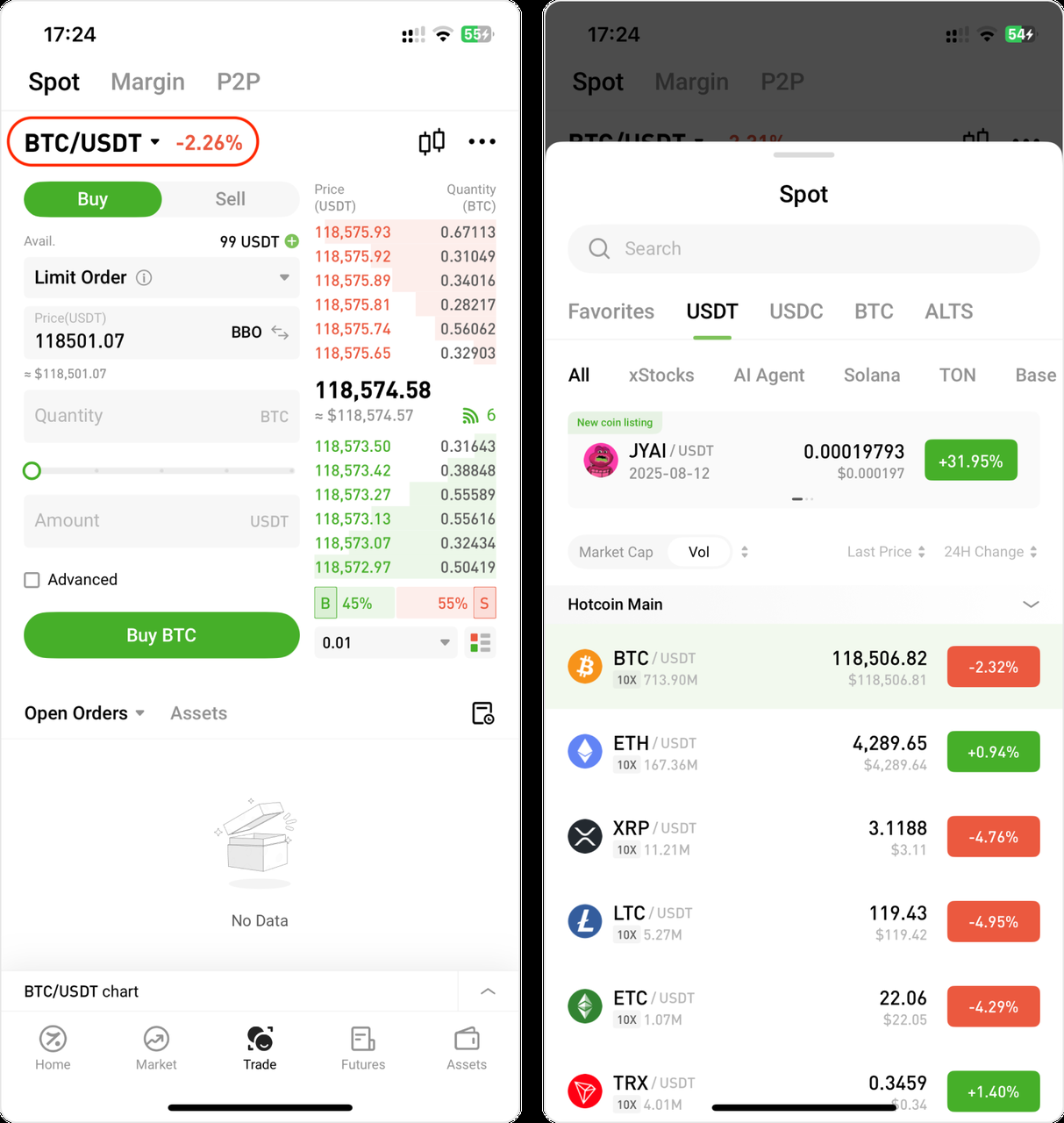
- Tap the trading pair in the top-left corner to open the trading pair search bar. Then, search or scroll to select your preferred trading pair (e.g., BTC/USDT, ETH/USDT).
3. Understand the Trading Interface
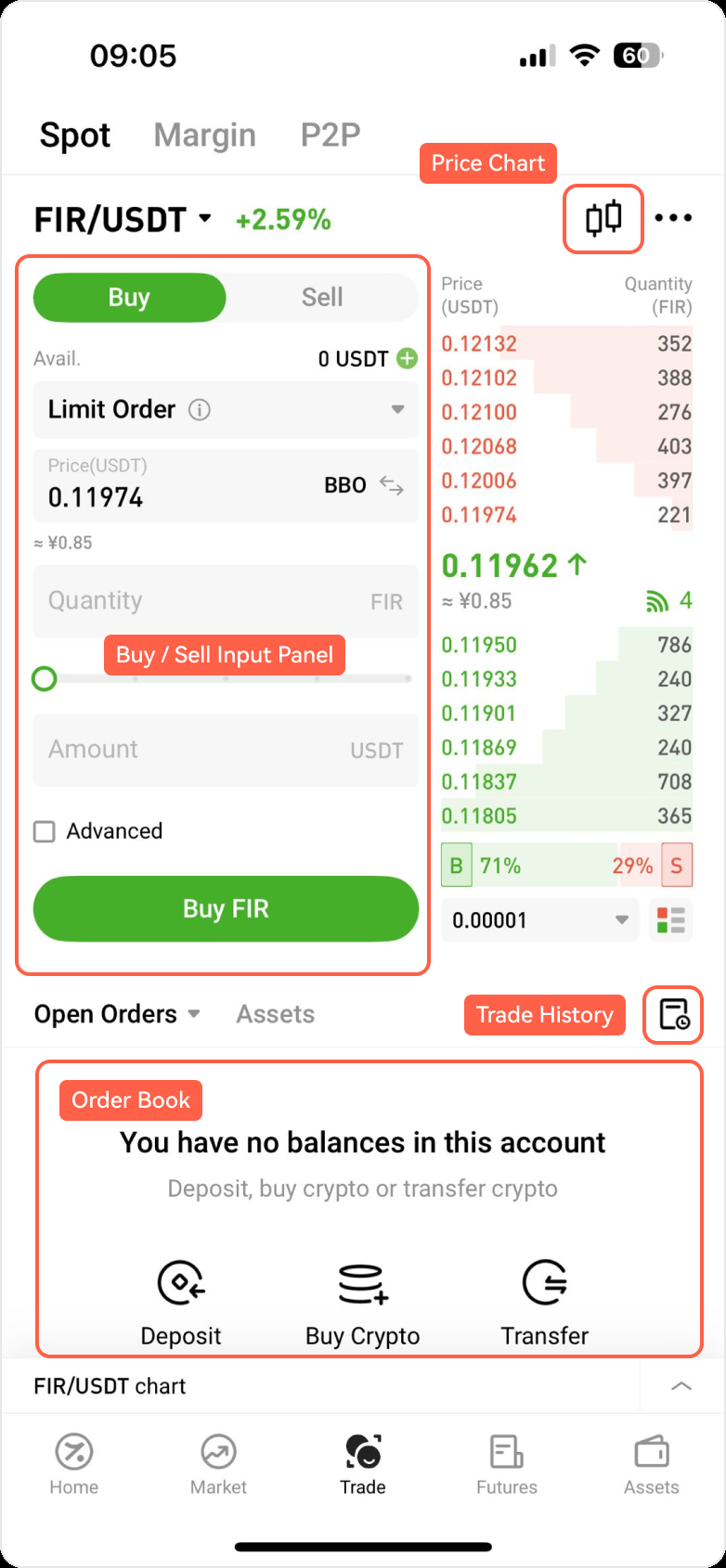
Each Spot trading page displays:
- Buy / Sell Input Panel (located on the left side, used for placing your order)
- Price Chart (this feature is accessible from the top-right corner of the Spot trading page)
- Trade History (tap the icon at the bottom right to enter the page that shows “Open Orders,” “Order History,” and “Trade History”)
- Order Book (Shows your recent and past buy and sell orders)
4. Place Your Order
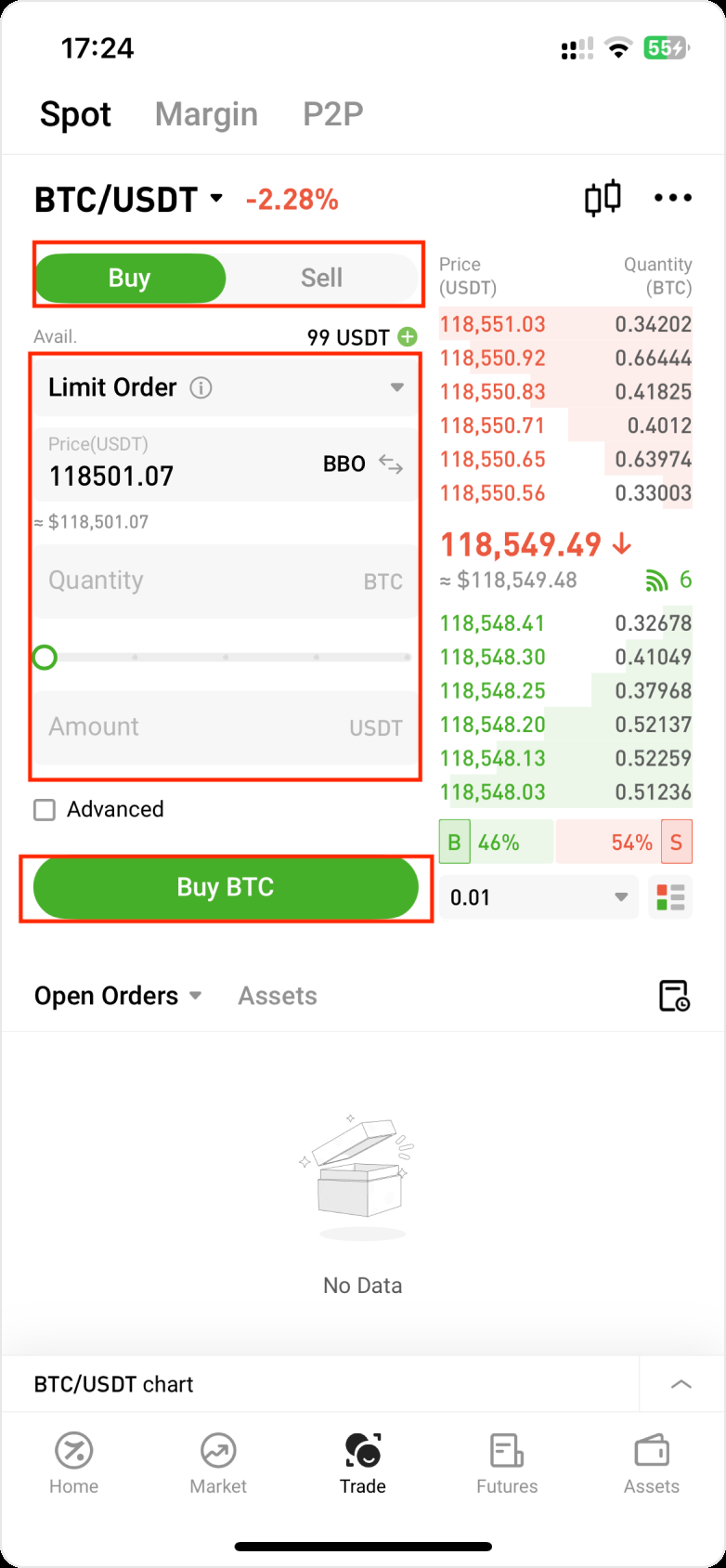
- Tap Buy or Sell under your selected trading pair
- Select the order type from the dropdown menu
- Enter the amount or quantity of crypto you want to trade
- Tap Buy or Sell to place your order
- View your active orders in the Open Orders section
5. Select Order Type
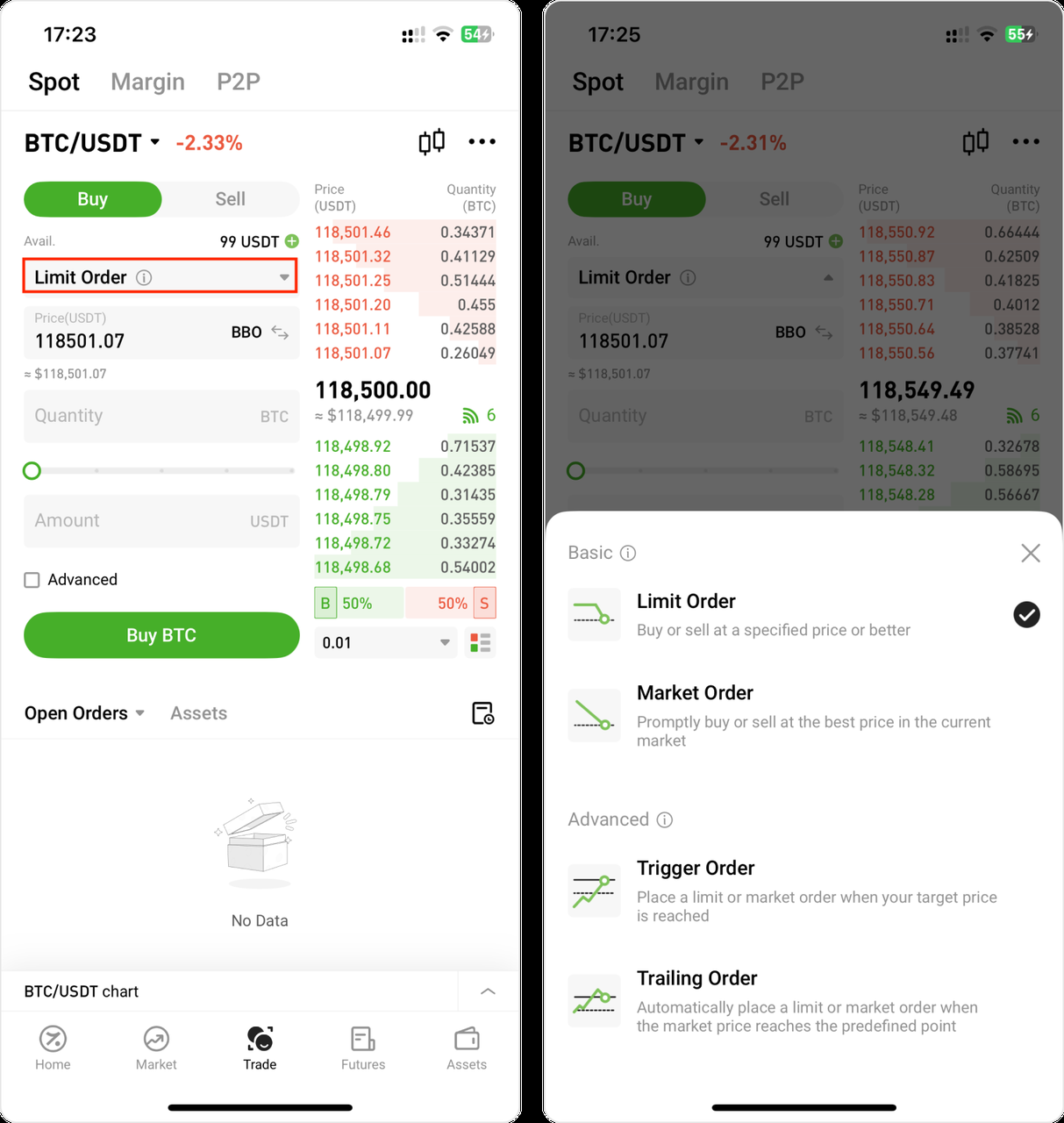
Tap the order type dropdown to select from:
- Limit Order: Set your desired price and quantity
- Market Order: Buy/sell immediately at the best available price
- Trigger Order: Set a condition to auto-buy/sell when a price is reached
- Trailing Order: Automatically triggers when the market price moves by a specified percentage or amount, helping you follow trends and optimize entries or exits
6. Check Your Spot Assets
- Go to the Assets tab → Spot Account
- View your available balances and transaction history
7. Cancel or Manage Orders
- Go to Open Orders under the Spot section to manage or cancel your pending trades
💡 Tips Before You Start:
- Make sure your account is funded (deposit crypto or buy with fiat via P2P)
- Learn about trading fees and minimum order sizes
- Use limit orders for more control; market orders for speed
💬 Need Help?
If you have questions or need help with your first trade, reach out to Hotcoin customer support in the app or visit the Help Center.

