
How to Log In Using QR Code on Hotcoin
Hotcoin provides a QR code login feature that allows you to log in to the web version quickly and securely using the Hotcoin App — without entering your username or password. This improves login efficiency while further enhancing account security.
How It Works:
1. Ensure that you are logged in to the Hotcoin App on your mobile device
2. On your computer, visit the Hotcoin official website, go to the Log In page, and select QR Code Log In

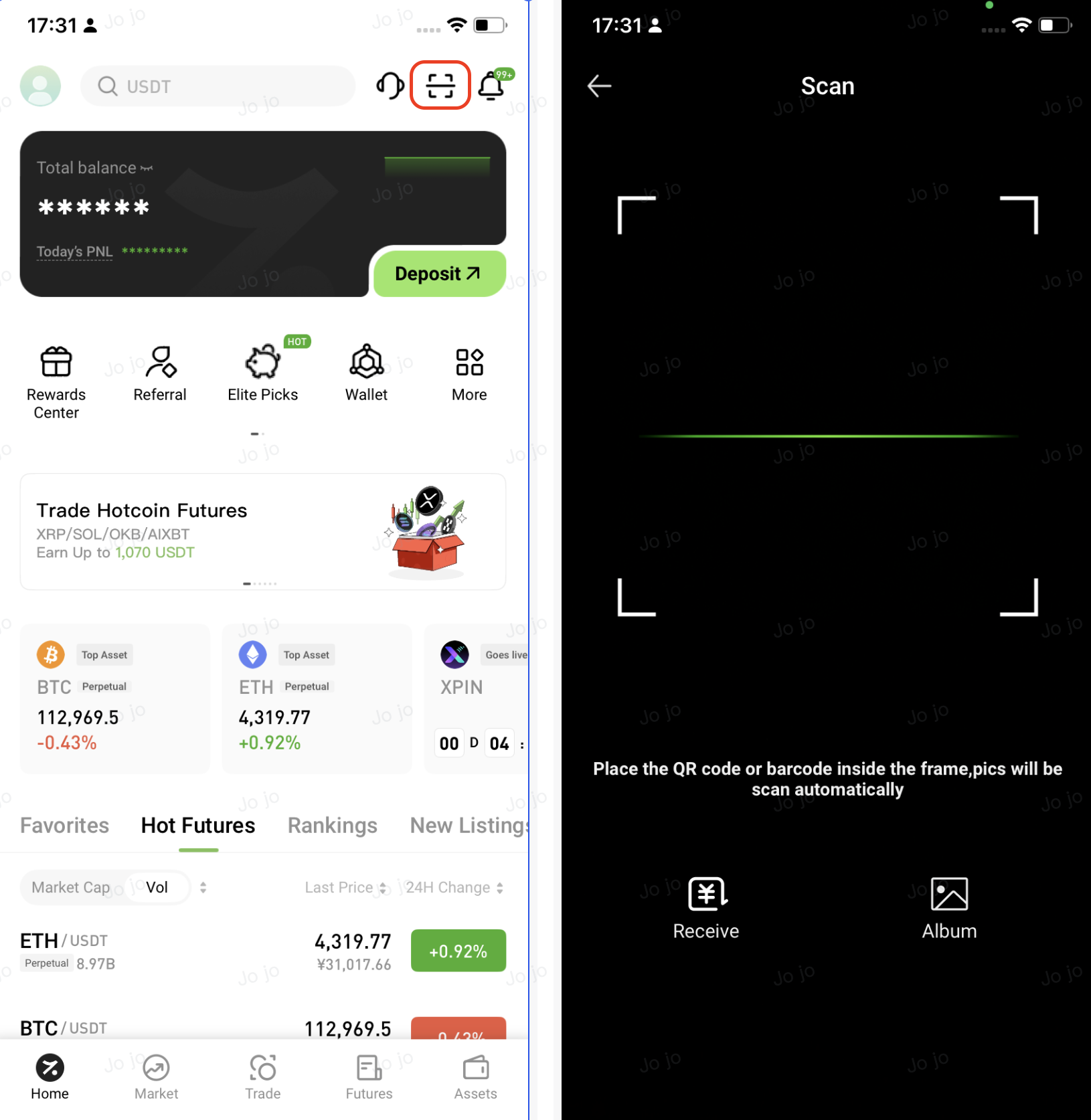
3. In the Hotcoin App, tap the Scan icon in the upper-right corner of the home page, then scan the QR code displayed on the webpage to log in securely
4. Review the login details shown in the App pop-up. If everything is correct, tap Authorize to continue
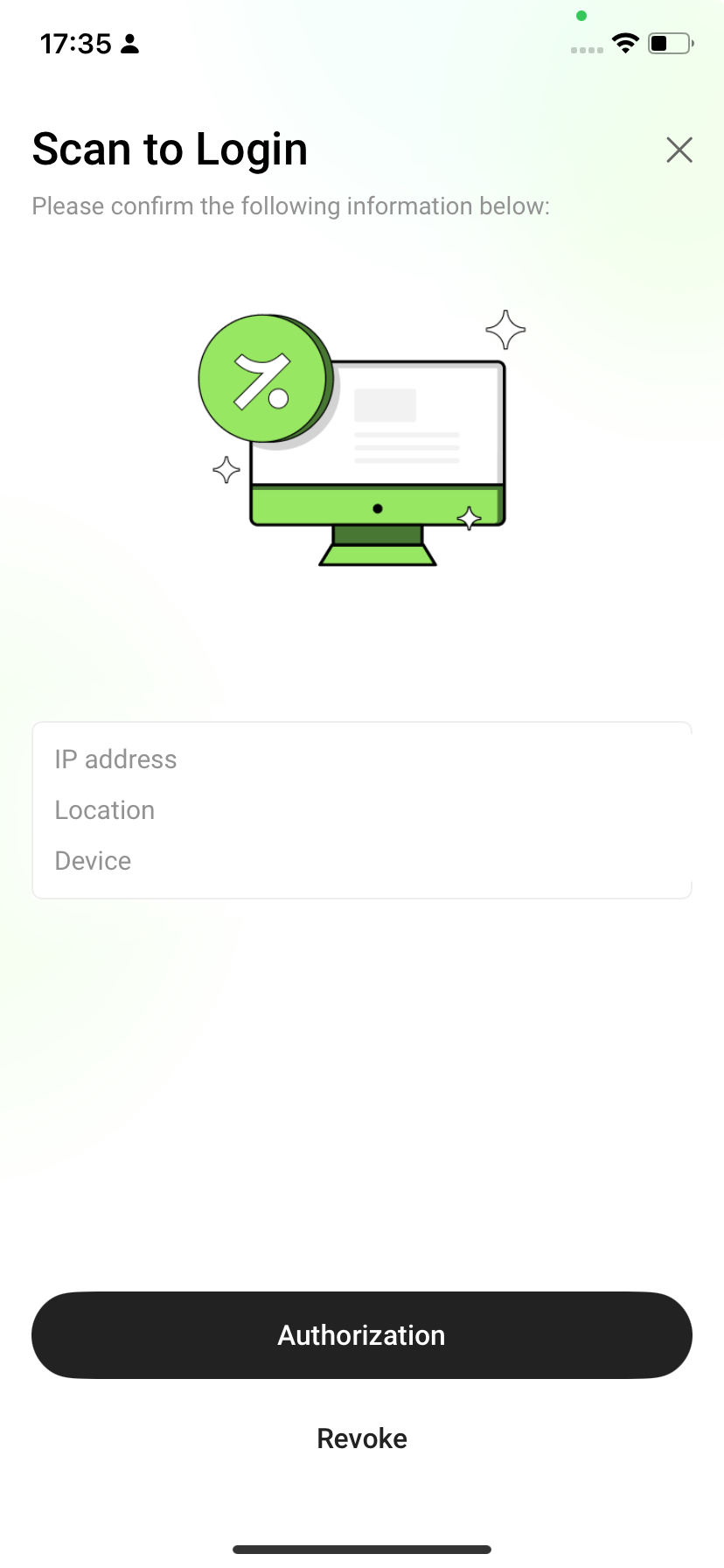
5. Once authorized, the webpage will automatically log you in and redirect you to your account dashboard
Security Tips
- Use QR code login only on trusted networks and personal devices, and avoid using it on public Wi-Fi or other unsecured networks
- Do not take screenshots of, share, or forward QR codes, login requests, or any one-time credentials
- Hotcoin staff will never ask for verification codes or QR codes via phone calls, private messages, or community channels.
- If you encounter any suspicious requests, verify them through the official website or the in-app customer support channels
FAQs
Q1: The webpage does not redirect after scanning the QR code. What should I do?
- Ensure your mobile network connection is stable and that you have completed the Authorize step in the App
- If the issue persists, refresh the webpage to generate a new QR code and try again
Q2: The QR code has expired or is invalid. What should I do?
- QR codes are time-limited. Refresh the login page to generate a new QR code, then scan again